
Adding links manually is one of those tasks that sounds simple until you're doing it at scale.
You publish a new post. You mean to go back and add links to related pages, external resources, or affiliate partners. You don't. Or you remember, but you can't find every place the phrase shows up. Or you add too many links and the page starts to look like a Wikipedia article that lost a bet.
Auto Link (in Slim SEO Pro) solves this problem: it scans your post/page content and turns matching keywords into links, consistently, without you touching the editor.
The problem with manual linking
Manual linking breaks down for three reasons:
- Scale: once you have dozens (or hundreds) of posts, "just add links" turns into a maintenance chore.
- Consistency: even if you're disciplined, your site won't be. Different authors link different phrases to different places.
- Restraint: the moment you start doing it by hand, it's easy to overdo it.
Auto Link gives you a small set of rules and applies them everywhere, the same way, every time.
How Auto Link works
Auto Link scans the main content area of your posts/pages. When it finds a matching keyword, it replaces that keyword with a link to the URL you set.
Auto Link supports two keyword scopes:
- Global keywords are the "set it once" rules you want across your whole site.
- Per-post keywords are for cases where the keyword should link to the current post/page's permalink.
It's easy to add a global keyword:
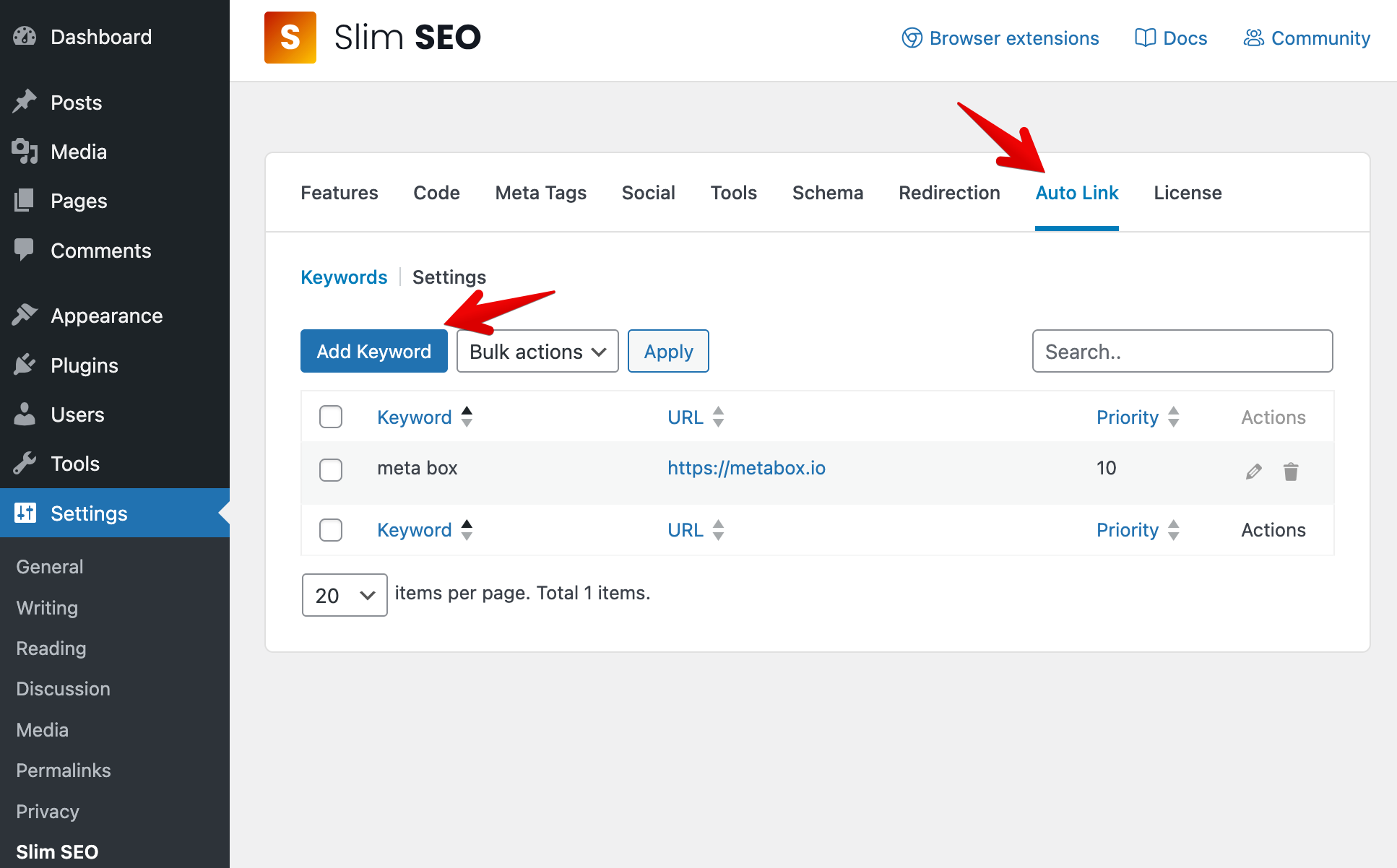
- Go to Settings → Slim SEO → Auto Link.
- Open the Keywords tab.
- Click Add Keyword.
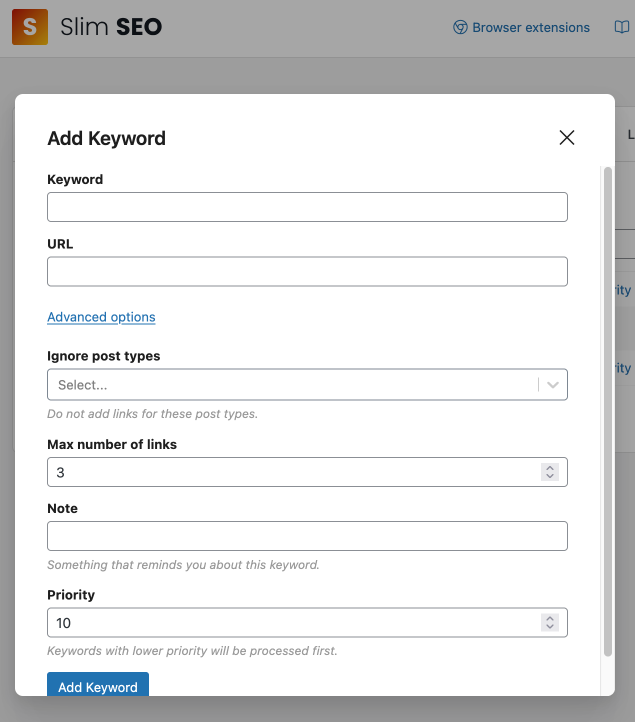
A popup will appear with the following options, and you only need to enter the required Keyword and URL. Other options are optional:
A practical setup
If you're not sure where to start, here's a setup that stays useful without turning every paragraph into a link farm:
- Pick 10–20 global keywords that map to important destinations (your own pages, external resources, affiliate partners, or anything else).
- Set a low max link count for each keyword (often 3 is enough).
- Use priority when you have phrases that overlap.
- Add notes so six months from now you remember why a keyword exists.
Then use per-post keywords sparingly for cornerstone pages you want to reinforce.
Auto Link and Link Manager
Auto Link and Link Manager are two different features of Slim SEO Pro:
- Auto Link is used to automatically add links to your content.
- Link Manager is used to manage and monitor your links, including internal links, external links, and broken links.
You can use both features together to get the best of both worlds. For example, you can use Auto Link to automatically add links to your content, and then use Link Manager to get (manual) link suggestions and monitor those links.
Because links added by Auto Link are dynamically generated, they are not visible in the Link Manager's reports, you can't use Link Manager to monitor them.
Ready to build links?
Once your site grows, you'll need a kind of automatic link building. Update to the latest version of Slim SEO Pro and meet your new favorite Auto Link today. 🚀